Skip to main content
User login
OpenID
What is OpenID?
Username or e-mail
*
Password
*
Log in using OpenID
Cancel OpenID login
Create new account
Request new password
Register
Home
Browse
2D Art
3D Art
Concept Art
Textures
Music
Sound Effects
Documents
Featured Tutorials
Submit Art
Collect
My Collections
Art Collections
Forums
FAQ
Leaderboards
All Time
Total Points
Comments
Favorites (All)
Favorites (2D)
Favorites (3D)
Favorites (Concept Art)
Favorites (Music)
Favorites (Sound)
Favorites (Textures)
Weekly
Total Points
Comments
Favorites (All)
Favorites (2D)
Favorites (3D)
Favorites (Concept Art)
Favorites (Music)
Favorites (Sound)
Favorites (Textures)
❤ Donate
Search
Heal Spell
Author:
Clint Bellanger
Friday, January 15, 2010 - 22:28
Flattr this item
Art Type:
2D Art
Tags:
heal
spell
healing
cure
Action
RPG
Fantasy
Raster Art
Isometric
Sprite
Effects
License(s):
CC-BY 3.0
Collections:
05. Pixel Art - Effects
AK TopDown Characters
AncientBeast
Collection for Ovaloord
Flare
Isometric
Isometric Items, Effects, Misc
isometric rpg
legends
Magical or Elemental Attacks Art Collection
miniRPG
Misc
RPG Stuff Collection
Special effects
THEME: fantasy / rpg
w
Favorites:
39
Preview:
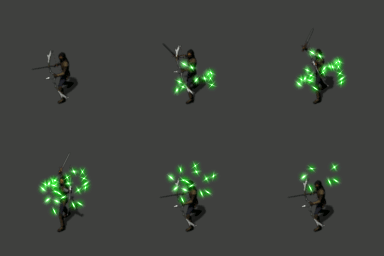
Healing sparkly spell
6 frames at 64x64 per frame
File(s):
heal.png
33.8 Kb
[
2390
download(s)]
heal.zip
40.9 Kb
[
1051
download(s)]
Log in
or
register
to post comments




Comments
Looks cool!
Could you please explain how you made this?
Also would it be possible for you to post some tutorials?
This is done using Blender particles.
A quick reference:
http://wiki.blender.org/index.php/Doc:Manual/Physics/Particles
The basics to create this effect:
1. Create a ring shape where the particles start. Make sure the normals are pointing up (positive Z). Once we add particle effects on this object it will become invisible.
2. Give the ring a new Material. Click the Halo option (which we use to make "lens-flare" type particle effects). In Shader choose the Lines option to make this particular effect style.
3. While the ring is still selected, open the Particle Window. ADD NEW particle system of type Emitter.
4. Change "Emit From:" to random (otherwise, particles will appear in the mesh face order, which is usually not what you want)
5. Under "Initial Velocity:" set Normal to some positive number. This means the particles will travel the same direction as the normals of the mesh (which are pointing up, from step #1)
6. Open a Timeline window. Drag the timeline cursor to Frame 1 then click Play. You should see the particles appear from the mesh.
7. Under "Basic:" tweak the Amount, Sta(rt), End, Life to get the amount of particles you want. Tweak the Initial Velocity: options to get the particles going the desired direction. Note: repeat step 6 any time you make a change in the Particle window.
8. Tweak the halo material Size, Add, and Color. Render. Tweak the material until it looks the way you want.